 Lightning Tracker
App Store
Using the app
Lightning alert app or radar app: which answers your question?
November 16, 2026 · 4 min read
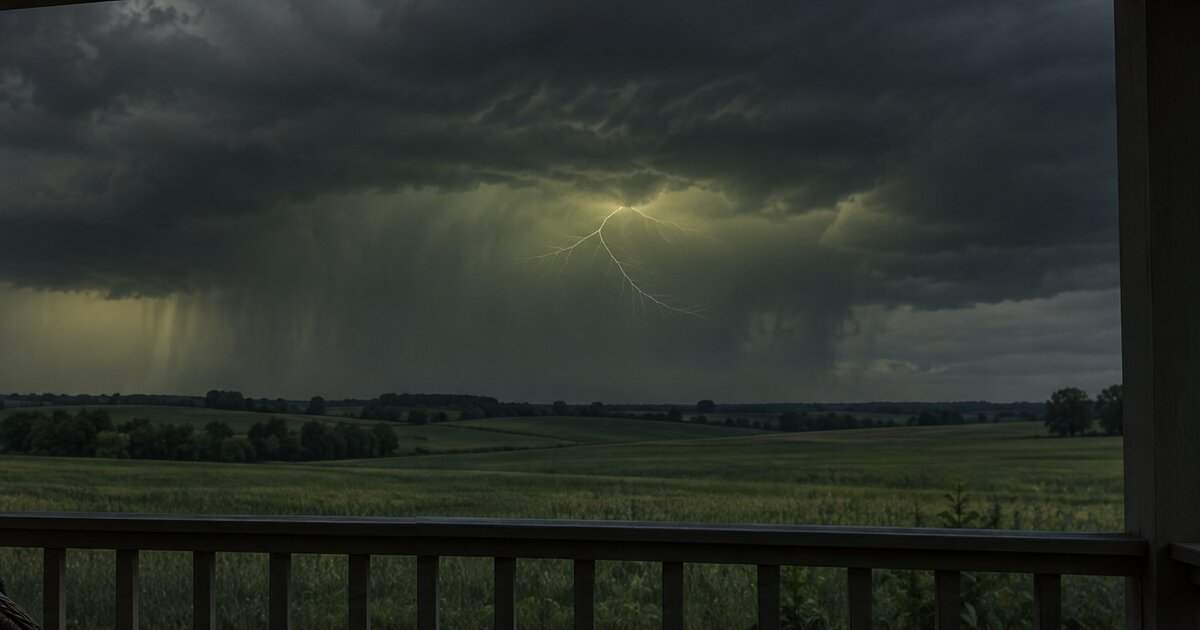
Choose a lightning alert app if you need a notice about nearby detected strikes; choose a radar app if you chiefly need to watch precipitation move. A radar app may include a separate lightning layer or alert, but weather radar itself measures returned energy from precipitation, according to the National Weather Service’s undated radar guide. Neither view replaces an official warning or the instruction to go inside when you hear thunder.
Choose by the question, not the app name
A radar app may put radar, lightning and warnings on one screen, but those are separate features. The National Weather Service’s undated radar guide explains that radar reflectivity comes from energy returned by precipitation targets; it is not a direct measurement of lightning. RadarScope’s provider guide, updated April 7, 2025, lists data providers for its radar data and for supplemental products. A lightning overlay in a radar app answers a different question from the colored precipitation image beneath it.
| Your question | Look for | What the feature answers |
|---|---|---|
| Where is rain moving? | Radar image and recent loop | Where precipitation was detected and how its pattern changed. |
| Where was lightning detected? | Lightning map or strike overlay with age labels | Locations and times of reported electrical activity. |
| Will I be notified about nearby detected strikes? | Configurable lightning proximity alert | A notice after the app receives a strike within its chosen area, subject to delivery limits. |
| Has the weather service issued a warning? | Official NWS warning feed or local alert channel | The agency’s warning for an area and hazard; it is distinct from a strike notification. |
The National Weather Service’s undated outdoor-sports guidance tells organizers to monitor weather conditions, weather radar and lightning detection technology for approaching storms. The same guidance says the lightning threat can extend about 6 to 10 miles from a storm-cloud base. Those are reasons to check both kinds of observations when planning an outdoor activity, not a reason to wait for every screen to show an event. A lightning map and radar can disagree because they measure different things.
Check the feature, its source and its delivery
App labels do not guarantee a particular set of tools. Forecast Bar’s product page says its map can layer precipitation, satellite, live lightning strikes and active weather warnings. RadarScope’s April 2025 documentation says its lightning data require a RadarScope Pro subscription or an AllisonHouse data plan, and its own feed displays cloud-to-ground strikes. The Weather Channel’s Storm Radar page lists both a lightning layer and lightning alerts. These are each maker’s descriptions of its own product, not a claim that every radar app has the same features.
Before installing, read the feature list for the exact app and tier you plan to use. Check whether “lightning” means a map layer, a notification, or both; whether the alert monitors your present location or a saved place; and whether you can set the alert distance. A lightning alert app’s data and delivery matter as much as its map icon. For an iPhone, notification permission, Focus, Background App Refresh and Low Power Mode can affect when an alert appears, as the iPhone storm-alert settings explain.
A displayed strike is an observation with a timestamp, not a prediction of the next strike. Detection networks can miss events and reports can arrive late, so a blank map is not a storm-end signal. Lightning detection networks and gaps explain why a reported location and an absence of dots have different meanings. If you only need a quick check of observed activity, a live lightning map may be enough; if you want a notice while looking elsewhere, verify that the app actually sends proximity alerts.
Use the tools in a practical order
Before leaving, check the forecast and official warnings for your route or activity area. The National Weather Service’s undated lightning overview advises a plan that gets people to shelter before weather becomes threatening and says to cancel or postpone early when thunderstorms are expected. A radar loop can help you see a moving precipitation area, while a lightning layer or separate map shows reported strikes. Ways to check lightning near you include thunder itself, maps and local systems.
During the activity, use an alert as another cue, not as permission to remain outside until your phone buzzes. The National Weather Service says to go inside if the sky looks threatening or you hear thunder; its overview advises waiting 30 minutes after the last lightning or thunder before going back outside. Its outdoor-sports page also notes that wind, traffic and precipitation can make thunder harder to hear. An official warning can add information about other hazards, but a lack of warning does not overrule thunder.
For a group, decide in advance who checks the weather, how long everyone needs to reach a substantial building or hard-topped vehicle, and what ends the activity. The NWS outdoor-sports guidance calls for a designated lightning monitor who knows the plan. A phone app may help that person observe the storm, but the decision to stop should follow the plan and the conditions in front of the group.
What the Lightning Tracker app combines
Lightning Tracker is an iPhone app that shows recently detected strikes, the nearest strike’s distance, direction and age, plus a radar layer with a free latest frame and a Premium timeline; strike observations come from Xweather and radar from Rainbow.ai. It alerts when a strike is detected within a per-place radius, 10 miles (16 km) by default, labels delayed or missing strike data, and does not replace official warnings or local procedures.
Not a substitute for official weather warnings.
If you hear thunder, seek shelter even if the app shows no nearby strike.
Sources
- National Weather Service, Using and Understanding Doppler Weather Radar
- National Weather Service, Lightning Safety and Outdoor Sports Activities
- National Weather Service, Overview: Lightning Safety
- RadarScope, Data Provider Settings
- Forecast Bar, Weather Radar App for iPhone & iPad
- The Weather Channel, Storm Radar